|
<< Click to Display Table of Contents > Sphere |
  
|
|
<< Click to Display Table of Contents > Sphere |
|
This sub chapter describes the available settings for the wrapping an object onto a spherical surface.
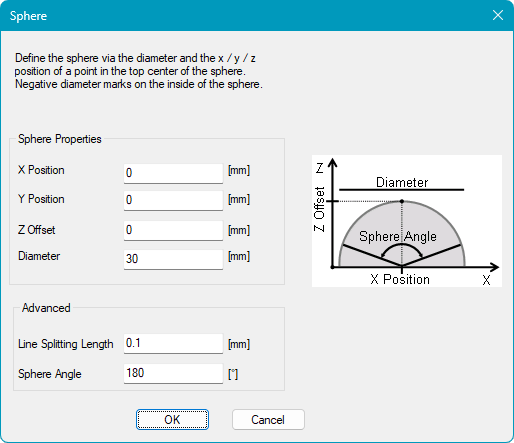
The spherical surface configuration can be accessed by selecting Sphere from the 3D Surface drop-down menu and clicking the Settings button.
Figure 515: 3D Sphere Configuration Dialog |
Surface Properties: Defines the geometry and position of the sphere. X Position: Defines the X position of the center. Y Position: Defines the Y position of the center. Z Offset: Defines the Z position of the top of the sphere. Diameter: Defines the diameter. Negative values result in marking on the inside. Advanced: Contains additional settings for spherical marking. Line Splitting Length: Defines the distance along a line after which an additional point is generated and transformed onto the 3D surface. Each line is processed independently. Sphere Angle: Defines the angular extent of the spherical surface. The default value of 180° represents half of the sphere, while smaller values represent only a portion of the sphere circumference. This parameter affects the spacing of the blue dashed circles displayed in View2D. The Sphere Angle can be set between 0.0001° and 180°. |
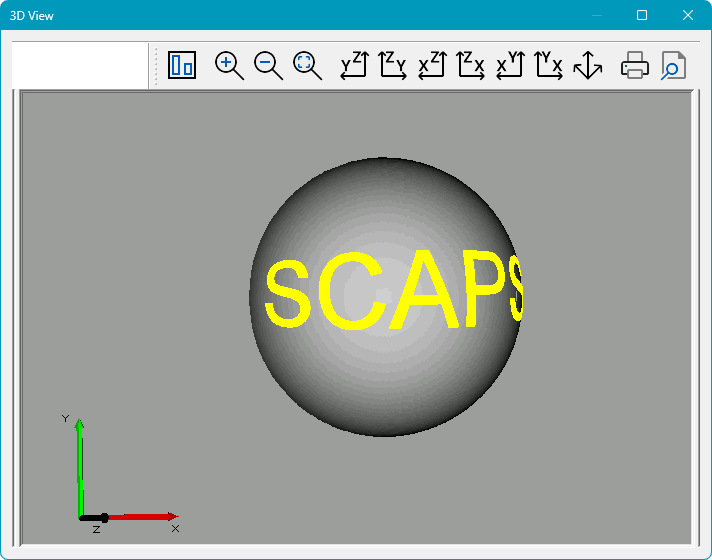
Please see below an example of a wrapped text entity in the View2D (left) and 3D View (right). Please note that the 3D View can be activated by clicking on the icon  in the toolbar.
In the View2D, the outer dashed circle has a diameter equal to the length of the circular arc defined by the Sphere Angle in a cross-sectional view through the center of the sphere. The inner dashed circle has a diameter equal to the corresponding chord length.
The entities displayed in the View2D are shown in their unwrapped state and are not yet projected onto the spherical surface.
Figure 516: 3D Sphere in View2D |
Figure 517: 3D View of Sphere |
|
For optimal marking quality, keep the marking area centered beneath the laser. Moving it too far away from the center reduces the laser incidence angle and may result in lower marking quality. |
|---|
|
Please note that points and point clouds are not visible in the 3D preview. |
|---|