|
<< Click to Display Table of Contents > Horizontal Cone |
  
|
|
<< Click to Display Table of Contents > Horizontal Cone |
|
|
Check out our SAMLight Video Tutorial regarding the Optic 3D Cone: |
|---|
This sub chapter describes the available settings for the mapping of an object onto a horizontal conical surface.
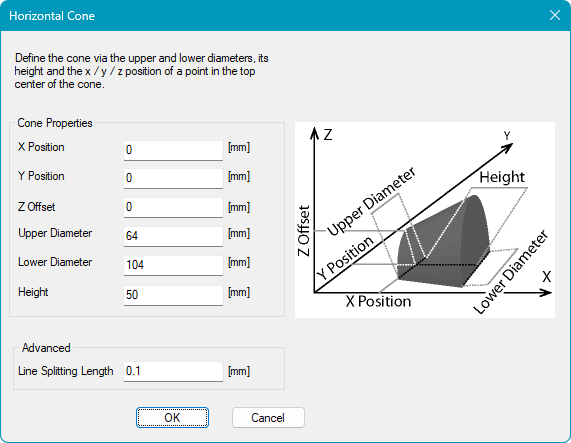
The surface configuration can be accessed by selecting Horizontal Cone from the 3D Surface drop-down menu and clicking the Settings button.
Figure 524: 3D Surfaces Horizontal Cone Configuration Dialog |
Cone Properties: Defines the geometry and position of the Horizontal Cone. X Position: Defines the X position of the center of the upper surface. Y Position: Defines the Y position of the center of the upper surface. Z Offset: Defines the Z position of the highest point of the upper surface. Upper Diameter: Defines the diameter of the upper surface. Lower Diameter: Defines the diameter of the lower surface. Height: Defines the height of the cone. Advanced: Contains additional settings for projection onto a conical surface. Line Splitting Length: Defines the distance along a line after which an additional point is generated and transformed onto the 3D surface. Each line is processed independently. |
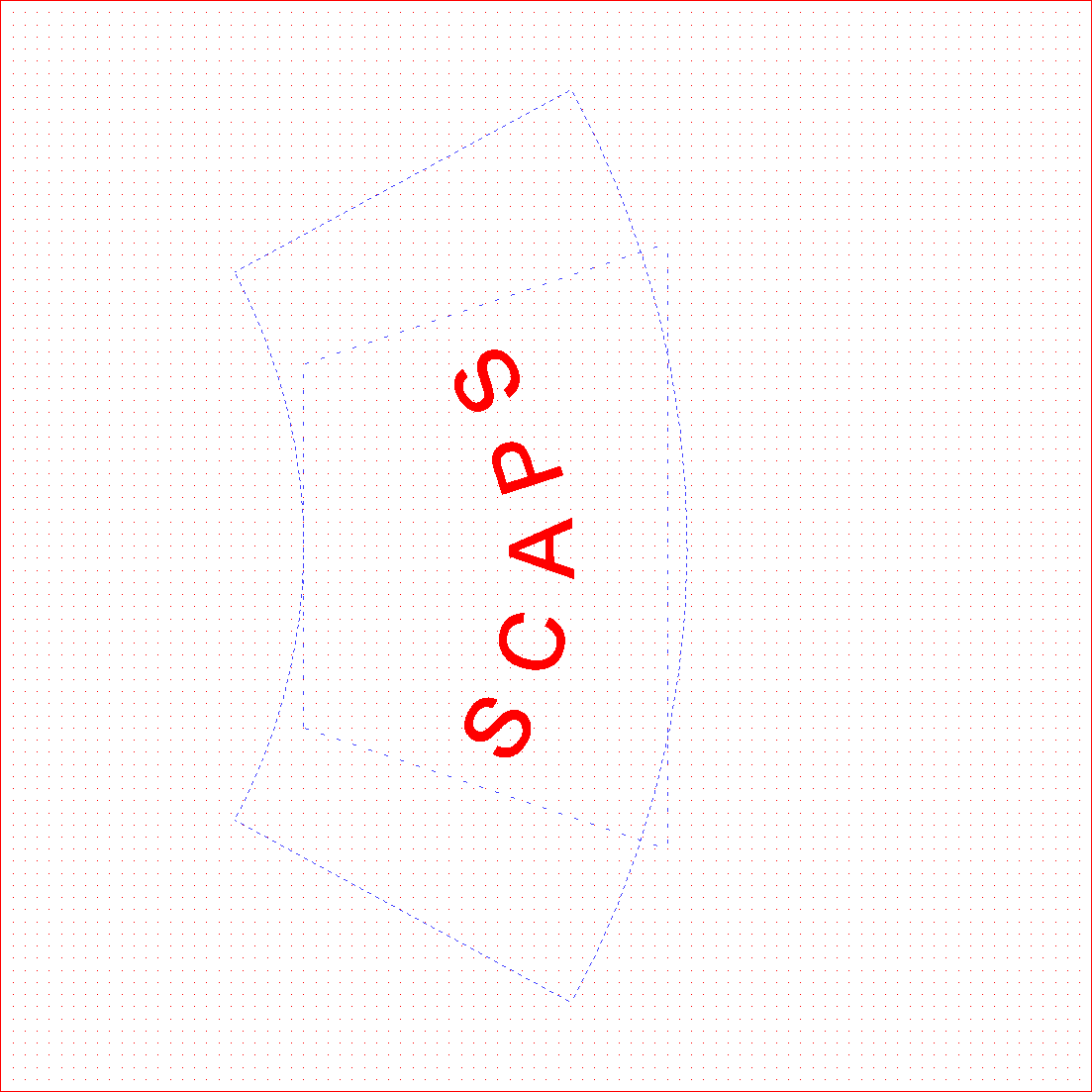
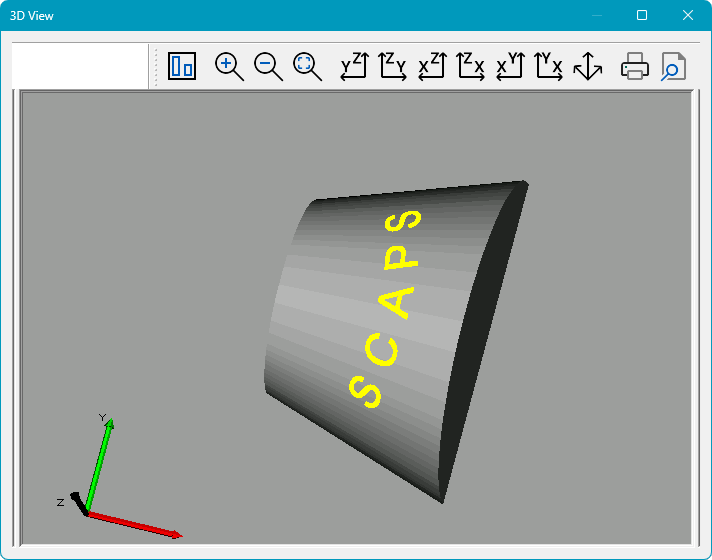
Please see below an example of a mapped text entity in the View2D (left) and 3D View (right). Please note that the 3D View can be activated by clicking on the icon  in the toolbar.
In the View2D, the smaller trapezoid represents the size of the horizontal cone while the larger trapezoid represents the available envelope surface, corresponding to the total surface area available for marking.
By default, text entities are not curved along the surface envelope. To optimize the mapping of text onto the curvature, enable Radial Text in the Text2D Properties.
|
Figure 526: 3D View of the Horizontal Ring |
|
For optimal marking quality, keep the marking area centered beneath the laser. Moving it too far away from the center reduces the laser incidence angle and may result in lower marking quality. |
|---|
|
Please note that points and point clouds are not visible in the 3D preview. |
|---|