|
<< Click to Display Table of Contents > Edit Pens |
  
|
|
<< Click to Display Table of Contents > Edit Pens |
|
Each single pen can be edited by pressing the Edit... button in the mark property page (Alternatively, double-click on any field in the line of the selected pen).
The pen that has to be set is selectable in the combo box. Also some variables provide All buttons to apply the setting to all pens.
Here the following tabs are available:
•Main
•Misc
The following settings are global for each pen, so they can be seen for each pen independent of the chosen tab.
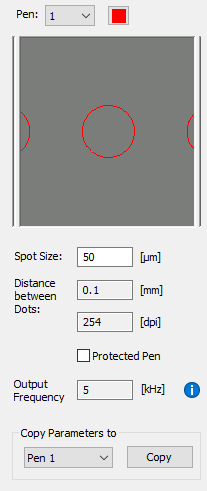
Figure 106: Pen Settings Global |
Pen: The drop down menu can be used to switch between pens. Color: This value is used to change the color of the selected pen. Colors for pens 21-254 need to be changed in the ViewProperties. Spot size: This value is used for the display of the spots. Distance between dots: Gives information on the distance between pixels in bitmap mode. Protected Pen: When activated, the pen is protected. Thus, the parameters cannot be changed any more (also not by the application of an 'All' button in any other pen). It will be possible by user level to deny editing pens for specified user groups. This protected flag is only stored in the SAMLight settings and not in the pen settings. That means it won't be exported via pens included in a job file. If a job with included pens is loaded, a protected pen will be overwritten anyway. It is possible to overwrite a protected pen by CCI. Output Frequency: Only available for the USC-3. Since the card is not able to send out every frequency which can be chosen, it selects the closest possible option. This frequency is then displayed. To allow the user to precisely choose the output frequency, the some of the closest possible values to the current frequency are displayed while hovering over the info-icon. Copy parameter to: It is possible to copy all settings from one pen to another pen or to all pens. |
|---|