|
<< Click to Display Table of Contents > Shortkeys |
  
|
|
<< Click to Display Table of Contents > Shortkeys |
|
This dialog is opened via Settings → System → Short Keys.
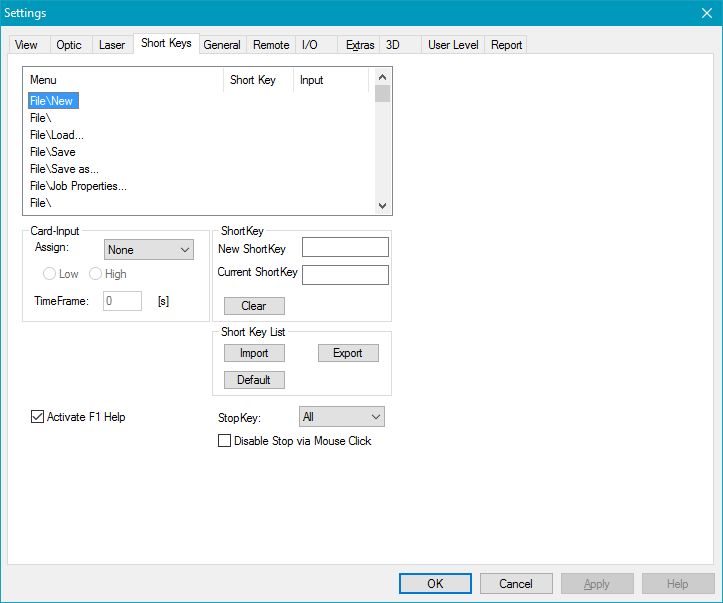
Figure 57: Short Keys Settings Dialog
Menu List: Lists all menu items to which a short key can be assigned. For each item, the assigned short key and card input are shown in the Short Key and Input columns.
Card-Input: This option is only available for USC cards. It assigns a card input to each short key. The USC-1 provides four input bits (Opto_In_2 to Opto_In_5). The newer generations (USC-2 to USC-4) provide ten additional inputs (Digi_In_0 to Digi_In_9). The default assignment is None. The input is selected in the Assign drop-down menu, and the trigger level is set with the Low and High options. If an input is assigned, the short key is triggered as soon as the input reaches the selected level. The external trigger (Opto_In_0) and external stop (Opto_In_1) cannot be used via this method since their assignment is permanent.
TimeFrame: Defines the repetition rate of the assigned operation. The value is entered in seconds. As long as the input remains at the selected level, the operation is repeated at this interval. The lower limit is about 0.2 s.
Stop: Defines how marking can be stopped.
•StopKey: Selects the keys that stop marking. The following options are available in the drop-down menu:
oAll: Every key on the keyboard stops the marking.
oEsc/Space: Only the Escape key and the Space bar stop the marking.
oNone: No key on the keyboard stops the marking. This option cannot be used together with Disable Stop via Mouse Click.
•Disable Stop via Mouse Click: When enabled, marking can only be stopped with the defined StopKeys.
ShortKey: Assigns a user-defined short key to each menu item. The desired menu item is selected in the list, then the empty New ShortKey field is clicked and the desired key is pressed on the keyboard (for example F2). The short key currently assigned to the selected menu item is displayed in the Current ShortKey field. Clear removes this assignment.
ShortKey List: Import loads a short key file (*.sam). Export saves the short key list currently defined. Default restores the default short key list.
Activate F1 Help: Activates the context-sensitive help, for which the F1 key is predefined.
|
F1 is also the default short key for the start buttons in the Mark Dialog. If Activate F1 Help is selected, the short key defined for the menu item Mark → Start is used for those buttons instead. |
|---|
|
Short keys can also be used for motion control. In this case, they are assigned to the jog movement of the axes. |
|---|
